Sample slides pass through a blue and cyan check frame; a check mark appears beside the finished slide.

Word · Excel · PowerPoint: Better documents.
Less rework.

Keep reports, spreadsheets and presentations clear through every round of edits. OfficeLint helps you catch mistakes, update content, tidy up formatting and give your slides a fresh look. Make more of the Word, Excel and PowerPoint files you already have.

  • 10 free credits on sign-up
  • Hide personal info for free
  • Files deleted after 15 days

The files behind your everyday work

From a document to a spreadsheet to a presentation

OfficeLint helps you improve reports, spreadsheets and presentations you already have. Update the content, check the details and make the result easier to read and share.

Word: make long documents clearer

.docx

Reports, proposals and manuals go through many edits. Bring headings, numbering and terminology into line so readers can follow the content.

  • Tidy up headings, paragraphs and numbering
  • Update recurring names and terms
  • Check for missing content and personal information before sharing

Excel: make business data easier to read

.xlsx / .xls

Budgets, quotes and business reports need clear figures and readable tables. Align dates, units and number formats to reduce back-and-forth when sharing your work.

  • Review dates, units and number formats
  • Standardize headers, labels and recurring names
  • Organize worksheets for colleagues to read and use

PowerPoint: give existing content a fresh look

.pptx

Improve client proposals, team slides and quarterly reports. Catch formatting and number mistakes, edit the content and refresh the design using a reference deck.

  • Check numbers and formatting across slides
  • Edit text and replace recurring content
  • Restyle from a reference and compare slide by slide

Make more of the work you already have

Find mistakes. Make changes. Refresh the look.

OfficeLint brings checking, editing and restyling together. Find the details that need attention, update the content and adapt the design for your next audience.

Check: see what needs attention

OfficeLint helps you review formatting, wording and how numbers are presented. In PowerPoint, compare figures across slides to catch missed updates.

  • Review formatting

    Find issues with fonts, punctuation, page numbers and overflowing text.

  • Compare numbers

    See different values for the same metric together, ready to compare.

  • Catch unfinished text

    Find forgotten TBDs, XXs and other template text that needs replacing.

Move from the report straight into making changes. Your original file stays untouched.

Edit: get this version right

OfficeLint helps you edit text and update recurring names and terms, keeping the content in documents, spreadsheets and presentations consistent.

  • Edit text directly

    Double-click text in the preview to edit it. Affected slides are checked again afterwards.

  • Replace in a batch

    Review matches in text, tables, charts, slide masters and notes, then choose which to replace.

  • Stay in control

    Choose whether related wording should change too. Review the change history and undo individual edits or the whole batch.

Manual edits and find and replace are free; automatic fixes from the report use credits. Export a revised copy with an optional change report.

Restyle: give your slides a new look

OfficeLint gives existing slides a new look using a reference presentation. Update the visual style or rework layouts, then compare versions side by side and check the text and numbers.

  • Start from a reference

    Upload a presentation with a design you like and bring that visual style to your own content.

  • Rethink the layout

    Change the visual style or rebuild layouts from a reference, then adjust individual slides.

  • Compare before generating

    Compare the original and revised slides side by side. Review text, numbers and layouts before generating and checking the new version.

Keep the value of your content while adapting its look to a new client, brand or presentation.

Start with the files you already have

What is OfficeLint?

OfficeLint helps you improve Word documents, Excel spreadsheets and PowerPoint presentations: catch mistakes, update content and make your work clearer.

OfficeLint focuses on everyday revisions: organize structure and wording in Word, review how figures are presented in Excel, and update content and design in PowerPoint. OfficeLint brings checking and editing to Word (.docx), Excel (.xlsx / .xls) and PowerPoint (.pptx).

OfficeLint helps you finish reports, hand over business spreadsheets, combine team contributions and reuse existing work. Update names for a new client, align wording or adapt the presentation for a different audience.

Explore checking, editing and restyling

PowerPoint checks
6 checks: fonts, punctuation, page numbers, unfinished template text, text overflow and mismatched numbers
How it fixes
Fix fonts, punctuation and page numbers in one click; edit text or use find and replace. Every change can be undone
How it restyles
Use a reference deck to change the style or layout, with the original and revised slides side by side
Your original
Never overwritten; your revisions are saved as a new file
Redaction
Phone numbers, email addresses, ID numbers and bank card numbers; rule-based redaction is free
Languages
English, Japanese and Chinese in one deck, each paragraph checked by its own rules
Files
.docx, .xlsx, .xls, .pptx; deleted automatically after 15 days; never used for training
Price
Pay per slide: 1 credit to check, 0.5 credit to fix; 10 free credits on sign-up

At a glance · Updated

The report

See what needs attention, all in one report

OfficeLint puts issues affecting readability and number consistency first, with the slide locations beside them. Work through the priorities, then open the details when you need them.

64
Fix before sending 3 must-fix types · 46 one-click fixes
Fix 46 issues · across 18 slides

Errors Must fix

  • Leftover placeholders TBD, XX%, Click to add text · slides 14, 27, 63 3
  • Text overflow Text runs past its box · slides 22, 58 2

Numbers

  • Figures that don’t match 2025 estimated market size · 3 values · 5 slides 5

Warnings

  • Inconsistent body font Calibri Light and Arial mixed in · 11 slides One-click fix 23
  • Mixed punctuation Full-width commas in English sentences · 9 slides 18
Final_report_v3_merged.pptx · 80 slides Sample data
  • Priorities at a glance

    OfficeLint pairs the health score with a short summary. If important issues remain, it recommends fixing them before you send.

  • Grouped, then ranked by impact

    OfficeLint groups similar issues so you can handle them together. Formatting and number issues have their own groups, making the report easier to work through.

  • See the scope before you fix

    OfficeLint shows how many issues and slides a fix will affect. Review the scope before applying it, and undo the whole batch if needed.

Catch common mistakes

6 checks for the details that are easy to miss

OfficeLint checks for the common issues below and shows where each occurs and why it matters. Apply formatting fixes in a batch; fill in missing content and confirm numbers yourself.

  • Inconsistent fonts

    Find headings or body text that use different fonts at the same level. Bring slides from different contributors into a consistent style.

    e.g. 87% of body text is in Calibri, but 23 spots mix in Calibri Light and Arial

    One-click fix Only the font changes; size, color and position stay put

  • Mixed punctuation

    Checked against each language’s own rules: no full-width punctuation inside English sentences, no half-width punctuation inside Chinese ones, and one consistent style in Japanese.

    e.g. Revenue grew 12%,driven by renewals

    One-click fix Standardize punctuation to match the language

  • Missing or broken page numbers

    Slides without numbers, or numbers that skip or repeat — common in merged decks and in slides that were cut or moved.

    e.g. Slides 33–37 have no page number

    One-click fix Added back in the slide master’s style

  • Leftover placeholders

    Find template text such as TBD, XX or “Click to add text” that still needs replacing, so unfinished content stays out of your final presentation.

    e.g. Slide 14: “Expected growth of XX%”

    Needs your input Double-click to edit in place, free of charge

  • Text overflow

    Text that runs past its text box or the slide edge. Fixing other issues can cause it too, so affected slides are rechecked after every change.

    e.g. Slide 22: body text runs two lines past its box

    Suggested fix Resize the text or the box — you confirm

  • Mismatched numbers across slides

    Find the same metric with different values across slides. Compare the locations side by side, choose the correct value and update the rest.

    e.g. 2025 estimated market size written as $12.8B / $12.5B / $12.08B

    Pick the right value, sync the rest How cross-slide checks work

Cross-slide number check

Updated a number? Check the other slides too.

After a few rounds of edits, the same metric often ends up with different values on different slides. OfficeLint groups them by metric and lists every value with its slides and location. Pick the right value and it updates the rest for you.

  • Grouped by metric. No need to remember which slides a number appears on.
  • Every value has a source. Body text, tables and chart data all count, with slide and location spelled out.
  • Different notations are flagged, not changed. Something like “about $13B” is left for you to confirm, never changed automatically.
  • What can’t be checked is labeled. Charts pasted as images have no readable numbers; those slides are marked “cannot verify” instead of being silently skipped.
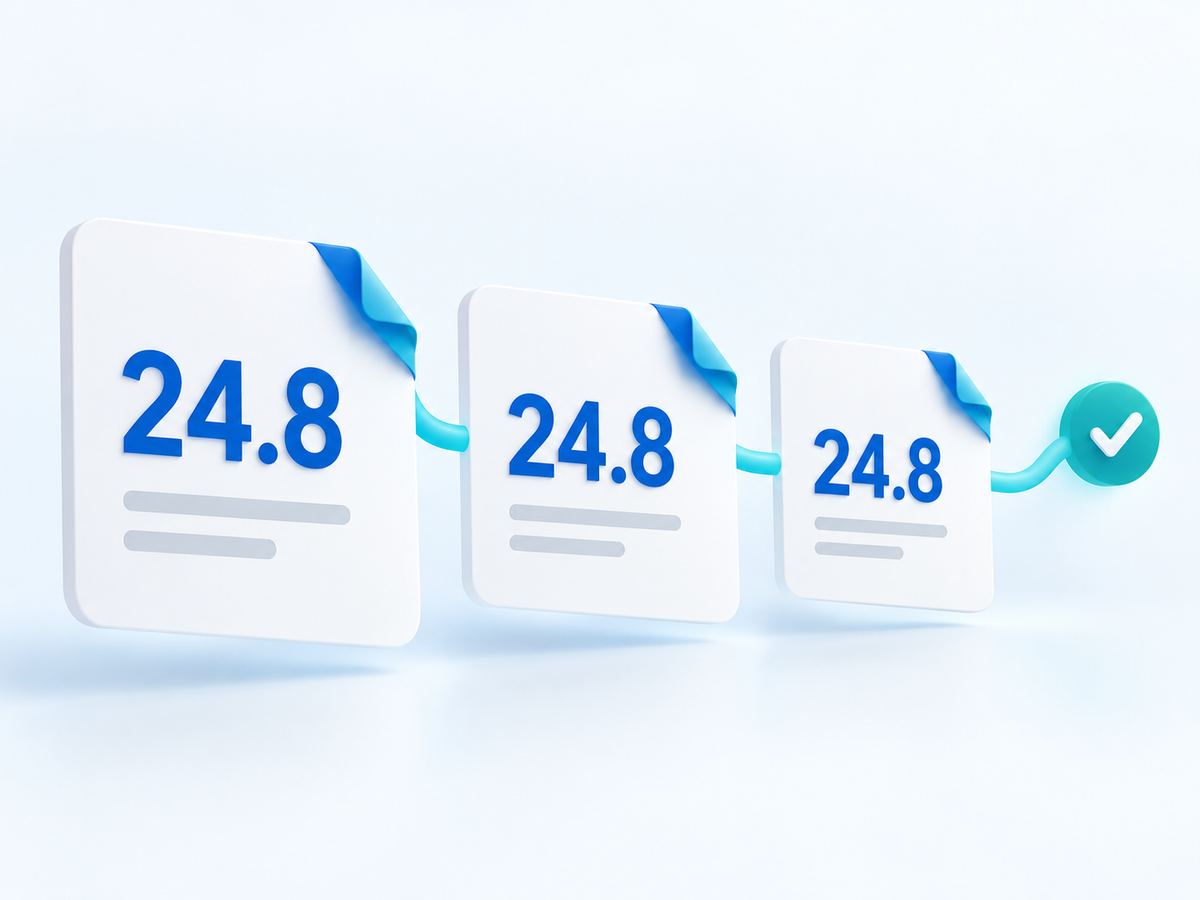
Three slides are linked by a line; the same figure on each shows the values agree.
P5 P12 P31 P47 P62
Three values for 2025 estimated market size
ValueWhereCount
$12.8B · selectedSlides 5, 12, 313
$12.5BSlide 47 · table1
$12.08BSlide 62 · body text1
Sample data: choosing $12.8B updates the other 2 occurrences. The 24.8 in the illustration is a demo value.

Check and edit

From an existing presentation to a revised copy

OfficeLint turns the report into a starting point for edits. Change text directly, replace repeated terms and fix formatting, then review and export a revised copy.

  1. Upload a .pptx

    Before the check starts you see how many credits it will use. If the file can’t be read, they’re refunded.

    80 slides — this check uses 80 credits; 1,160 left

  2. Read the report

    OfficeLint shows a health score and a prioritized issue list. Open an issue to see where it appears.

  3. Fix and edit

    OfficeLint fixes fonts, punctuation and page numbers in a batch. You fill in missing text and confirm conflicting numbers. Every change can be undone.

  4. Recheck and export

    Affected slides are rechecked automatically. Export the revised deck, optionally with unfixed issues written as comments; your original stays untouched.

    No issues found by the default checks.

Three items on a sample slide are masked in blue, with a translucent preview panel in front.

Redaction before sharing Free

Hide personal information before you share

OfficeLint can hide 4 types of personal information, including phone numbers and email addresses, using built-in rules. Use it before sharing a case study, sending a presentation or uploading it to an AI tool. No credits needed.

  1. Choose what to hide Default: phone numbers, email addresses, ID numbers, bank card numbers
  2. Preview each replacement Choose what each item is replaced with
  3. Run and check for leftovers Recheck for information matched by the selected rules
138****5678 w*******@example.com 110105********123X 6222 **** **** 5678

Phone numbers cover China, Japan and US formats; ID numbers cover the Chinese resident ID, Japan’s My Number and the US Social Security number. Information that needs judgment — client names, amounts, addresses — is not in the default rules.

English, Japanese, Chinese

English, 日本語 and 中文 in one deck, each by its own rules

OfficeLint detects the language of each paragraph, so all three can share a deck and each paragraph gets its own punctuation and typography rules. Explanations follow your interface language; the text being checked stays as it is.

Punctuation and formatting checks by language
Document languageWhat is checked
EnglishNo full-width punctuation inside English sentences; a space after punctuation
日本語Consistent sentence punctuation — 「、。」 and 「,.」 are not mixed; full-width and half-width katakana are not mixed
中文No half-width punctuation inside Chinese sentences; consistent spacing between Chinese and Latin letters or numbers

File security

Three things you should know before you upload

OfficeLint explains how files are handled, how long they are kept and what a shared result includes, so you can review the details before uploading.

  • How

    Used only for the actions you start

    Files are processed in OfficeLint’s cloud for the checks, edits, restyling and exports you choose.

  • How long

    Deleted after 15 days

    Files are kept for 15 days so you can recheck and re-export within one delivery cycle without paying again. Delete them any time, or have them deleted right after export.

  • Who can see

    Only you

    Files are never used to train models. A shared check result contains only the health score and an issue summary, never the file’s content.

Original never overwritten · Every change undoable · Integrity checked before export Read the security overview

Pricing

Manual edits are free. Checks and fixes use credits.

New users get 10 credits on sign-up, valid for 30 days. Before anything is charged, you see how many credits it will use.

  • Check 1 credit / slide Charged before the check starts; refunded if the file can’t be read
  • Automatic fixes 0.5 credit / slide Charged at export; each slide at most once in 15 days
  • Redaction and manual edits Free Rule-based redaction, in-place edits, find and replace, rechecks, re-exports
  • Starter pack

    $4.99 / 100 credits

    • Valid for 90 days
    • Check 80 slides and fix 18, as in the example below
  • Standard pack

    $19.99 / 500 credits

    ≈ $4.00 per 100 credits

    • Valid for 12 months
    • For occasional reports and proposals
  • Personal plan · annual

    $109 / year

    ≈ $0.91 per 100 credits

    • 1,000 credits a month, issued monthly
    • About 30% less than a year of monthly payments

Billing example: check 80 slides, fix 18

Redaction and manual edits are always free.

  • Check 80 slides × 1 80 credits
  • Fixes on 18 slides × 0.5 9 credits
  • Total 89 credits · ≈ $4.4 on Starter, ≈ $1.2 on the monthly plan

See full pricing and billing rules

FAQ

What people ask about OfficeLint

What is OfficeLint?

OfficeLint helps you improve Word documents, Excel spreadsheets and PowerPoint presentations: catch mistakes, update content and make your work clearer. OfficeLint brings checking and editing to Word (.docx), Excel (.xlsx / .xls) and PowerPoint (.pptx). Organize headings and wording in Word, review dates, units and number formats in Excel, or edit and restyle PowerPoint slides. Keep the work you already have and make it easier for the next person to read and use.

Can I edit my PowerPoint, as well as check it?

Yes. OfficeLint lets you double-click text in the preview to edit it, or find and replace matches in text, tables, charts, slide masters and notes. Choose which locations to update, decide whether related wording should change too, and undo changes from the history. Manual editing and find and replace are free; automatic fixes from the report use credits. Export your revisions as a new file.

How can I give my existing slides a new look?

OfficeLint gives existing slides a new look using a reference presentation. Update the visual style or rework layouts, then compare versions side by side and check the text and numbers.

How is it different from PowerPoint’s built-in checks?

OfficeLint brings formatting and number checks for the whole presentation into one report. For example, if a market-size figure changes in the summary but an old value remains in the appendix, the report lists the locations for comparison. You can also fix fonts, punctuation and page numbers together, with less searching slide by slide.

Could a one-click fix break my file?

OfficeLint works on a copy and exports a new file. Fonts, punctuation and page numbers can be fixed in one click; changes can be undone individually or as a batch. You fill in unfinished template text, review suggestions for overflowing text and confirm the correct values for conflicting numbers. Review the final file after exporting.

Are uploaded files safe? Are they used to train AI?

Files are deleted automatically after 15 days. You can delete them any time, or set them to be deleted right after export. Files are never used to train models. When you share a check result, only the health score and an issue summary are shared, never the file’s content.

How much does it cost? Is there a free trial?

There is no free plan. New users get 10 credits on sign-up, valid for 30 days; rule-based redaction never uses credits; and the home page includes an illustrative report preview. After that you pay per slide: checking uses 1 credit per slide and fixing uses 0.5 credit per slide. The Starter pack is $4.99 for 100 credits.

Which files and languages are supported?

OfficeLint brings checking and editing to Word (.docx), Excel (.xlsx / .xls) and PowerPoint (.pptx). English, Japanese and Chinese can be mixed in one document: OfficeLint detects the language of each paragraph and applies that language’s punctuation and typography rules. The interface is available in English, 日本語 and 简体中文.

How long does checking an 80-slide deck take, and what does it cost?

OfficeLint produces the report after checking; the time depends on the file size and content. Checking 80 slides uses 80 credits; if fixes touch 18 slides, exporting uses another 9, so 89 credits in total — roughly $4.4 on the Starter pack. Before anything is charged, the page tells you how many credits it will use.

How do I hide phone numbers and ID numbers in a deck before sending it out?

Use redaction before sharing. The default rules find phone numbers (China, Japan and US formats), email addresses, ID numbers and bank card numbers, and list them item by item for you to preview; you can edit what each one is replaced with. After it runs, OfficeLint checks for anything left behind. Rule-based redaction is free. Client names, amounts and addresses are outside the default rules; review other sensitive content before sharing.

Get your files ready for their next reader.

Start with a file you want to improve. Update the content and make it easier to share. 10 free credits for new users.